MikroTik Router Configuration NAT And Port Forwarding For Services
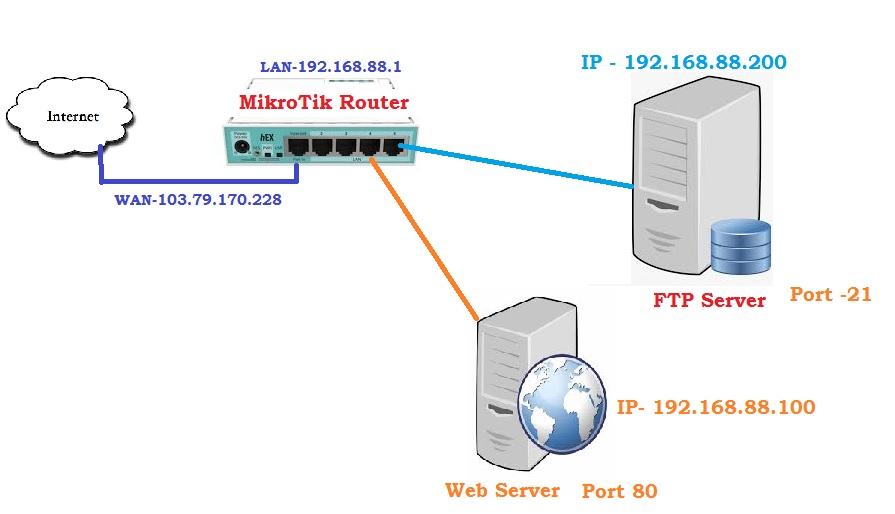
Have you ever wanted to access a device from outside your local network, but just couldn't quite figure out how to make it work? Fear not, as we're about to go through the process of enabling port forwarding on a Mikrotik router, step by step, so that you can finally access your device from wherever you are.
Step 1: Log into the Mikrotik router
The first step in enabling port forwarding on your Mikrotik router is to log in to its web interface, called Winbox. Open up your web browser of choice and visit the IP address of your router. The default IP address of Mikrotik routers is 192.168.88.1, but if you've changed this, you'll need to use the new IP address instead. Once you've entered the IP address into your browser's address bar, hit enter. You should now be greeted by the Winbox login screen.
Step 2: Go to the 'IP' menu and select 'Firewall'
Once you've logged in to Winbox, you'll see a menu on the left-hand side. Click on the 'IP' menu to expand it, and then select 'Firewall' from the list that appears. This will take you to the firewall settings page.
Step 3: Click on the 'NAT' tab
On the firewall settings page, you'll see a number of tabs at the top. Click on the 'NAT' tab to go to the NAT (Network Address Translation) settings page. This is where we'll be setting up port forwarding.
Step 4: Click on the plus icon to add a new NAT rule
Once you're on the NAT settings page, you'll see a list of existing NAT rules (if there are any). To add a new NAT rule for port forwarding, click on the plus icon at the top of the list. This will bring up a new window where we'll be setting up the new rule.
Step 5: Fill in the necessary details
In the new window that appears, you'll need to fill in some details to create the new NAT rule. Here's what you need to fill in:
- Chain: Select 'dstnat' from the drop-down menu
- Protocol: Select the protocol that your device uses (e.g. TCP, UDP)
- Dst. Port: Enter the port number that you want to forward (e.g. 8080)
- In. Interface: Select the interface that the traffic will be received on (usually 'ether1-gateway')
- Action: Select 'dst-nat' from the drop-down menu
- To Addresses: Enter the IP address of the device that you want to forward the traffic to (e.g. 192.168.1.10)
- To Ports: Enter the port number that the traffic will be forwarded to on the destination device (e.g. 80)
- Comment: Enter a descriptive comment to help you remember what this NAT rule is for
Step 6: Click 'Apply'
Once you've filled in all the necessary details for your new NAT rule, click on the 'Apply' button to save it. You'll now see the new rule added to the list on the NAT settings page.
Step 7: Test your port forwarding
At this point, you should be able to access your device using the port that you forwarded. Open up a web browser and enter the WAN IP address of your router (you can find this by Googling 'what's my IP address') followed by a colon and the port number that you forwarded (e.g. http://123.45.67.89:8080). If everything is set up correctly, you should be taken to the web interface of your device.
Some important things to keep in mind
While the process of enabling port forwarding on a Mikrotik router is relatively straightforward, there are some important things to keep in mind to ensure that everything works as it should:
- Make sure that the device you're forwarding the port to has a static IP address. If the IP address changes, your port forwarding rule will no longer work.
- Choose a secure username and password for your router, as well as for any device that you're accessing through port forwarding.
- Consider using a VPN (Virtual Private Network) to access your devices remotely, rather than using direct port forwarding. This adds an extra layer of security to your network.
Now that you know how to enable port forwarding on a Mikrotik router, you should be able to access your devices from anywhere in the world. Happy remote accessing!
Post a Comment for "MikroTik Router Configuration NAT And Port Forwarding For Services"